- Lab Infrastructure
- Lab Calendar
- Workstations Booking
Hardware
- DCGeoLab Prime 2114448: Dell Precision Tower 7865, AMD Ryzen Threadripper PRO 5975WX (128 MB cache, 32 cores, 64 threads, 3.6GHz to 4.5GHz, 280 W; NVIDIA RTX A6000, 48 GB GDDR6, 4 DP, and 4TB, M.2, PCIe NVMe, SSD, Class 40
- DCGeoLab Side 2114440: Dell Precision Tower 3660, 13th Generation Intel Core i9-13900 (36MB Cache, 24 Core (8+16), 2.0GHz to 5.6GHz (65W)) TDP, Nvidia GeForce RTX3070, 3660T, 64GB, 2x32GB, DDR5 up to 4400MHz UDIMM, and 4TB PCIe NVMe Class 40 M.2 SSD
- Three LG 43UN700-B 43 Inch Monitors Class UHD (3840 X 2160) IPS Display
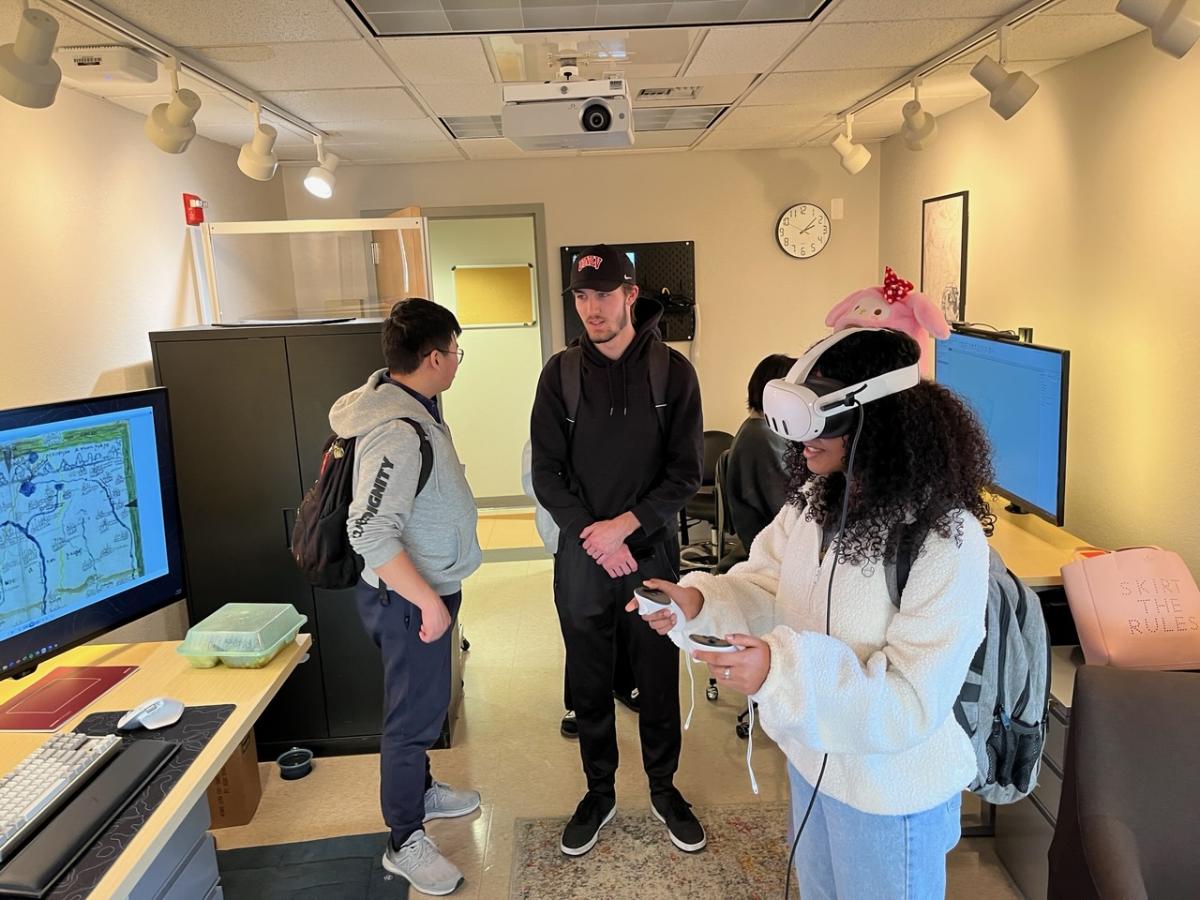
- Meta Quest VR headset with stylus
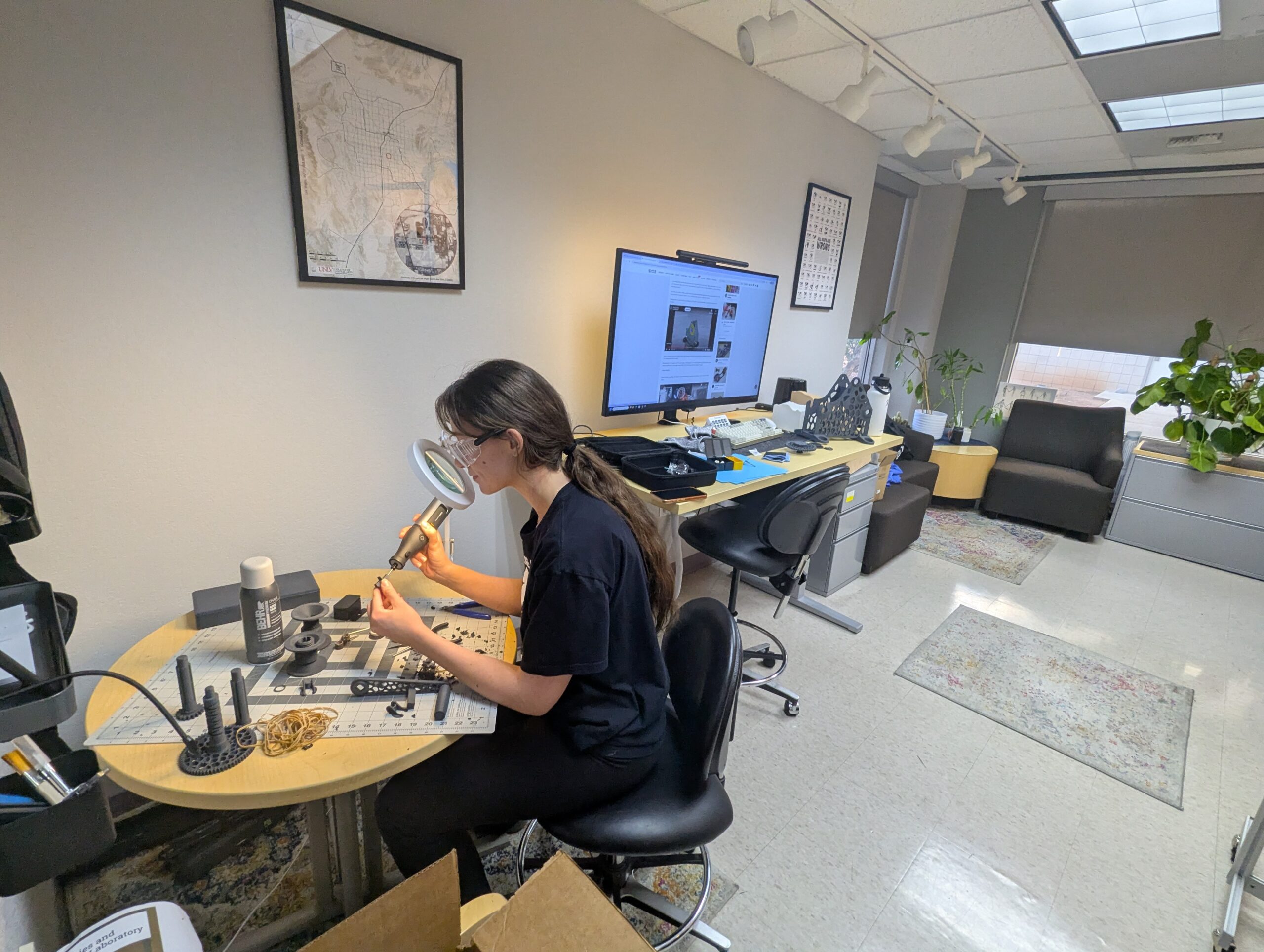
- Bambu Carbon x1 3D printer 16 Multi Color, Dual Auto Bed Leveling
Software
- ArcGIS Pro Suite as well as open-source spatial analysis software as QGIS
- ENVI from NV5, image analysis software including lidar and feature extraction modules
- SPSS statistical software
- Metashape, a photogrammetric processing software capable of creating and working with digital images and 3D data
Lab Computer Usage Calendar
Instructions for Members
Purpose
This shared calendar helps lab members coordinate access to lab computers, whether working remotely or in person. Before using any lab computer, check the calendar and add your reservation.
Calendar Access
Public URL: View Lab Computer Calendar
How to Add the Calendar to Your Google Account
- Open Google Calendar
- On the left sidebar, click the + next to “Other calendars”
- Select “Subscribe to calendar”
- Paste the Calendar ID above into the search box
- Click Enter – the calendar will now appear in your calendar list
DCGeoLab Workstation Scheduling Instructions
How to Reserve a Lab Computer
To schedule time on one of the DCGeoLab workstations, follow these steps:
1. Access the booking page : https://calendar.app.google/17cjNbrvETQJtxDm7
2. Select your preferred date and time
- Use the calendar on the left to choose your date
- Available time slots appear on the right (60-minute appointments)
- Click on an available time slot
3. Fill out the booking form
- First name: Enter your first name
- Last name: Enter your last name
- Email address: Use your UNLV email address
- Workstation: Choose either 2114448 (for complex and heavy processing) or 2114400 (for smaller processing needs)
- Remote or in-person processing: Indicate how you’ll be using the workstation
- Booking time (Optional): Specify approximately how long you’ll need the computer
- Software (Optional): List any specific software you plan to use
4. Confirm your booking
- Click the blue “Book” button
- You’ll receive a confirmation email with the appointment details
Need to cancel? Use the link in your confirmation email to cancel or reschedule your appointment.
Best Practices
- Check before booking: Review the calendar to avoid conflicts
- Be specific: Include which computer/workstation you’re using
- Update if plans change: Delete or modify your reservation if you won’t be using the computer
- Communicate: If you need extended time on a computer someone else has reserved, reach out to coordinate
- End sessions promptly: Release the computer when finished so others can use it
- Book in advance: Try to reserve computers at least a few hours ahead when possible
- Respect reservations: Don’t use a computer that someone else has reserved
